
Design Studio
Learn how to create beautiful coffee packaging with Roastify's easy-to-use design tools
Welcome to the Roastify Design Studio! Whether you're a design pro or have never opened a design tool before, this guide will help you create professional-looking packaging for your coffee products.
For the best design experience, please use a desktop or laptop computer. Mobile devices may have limited functionality.
Getting Started with the Designer
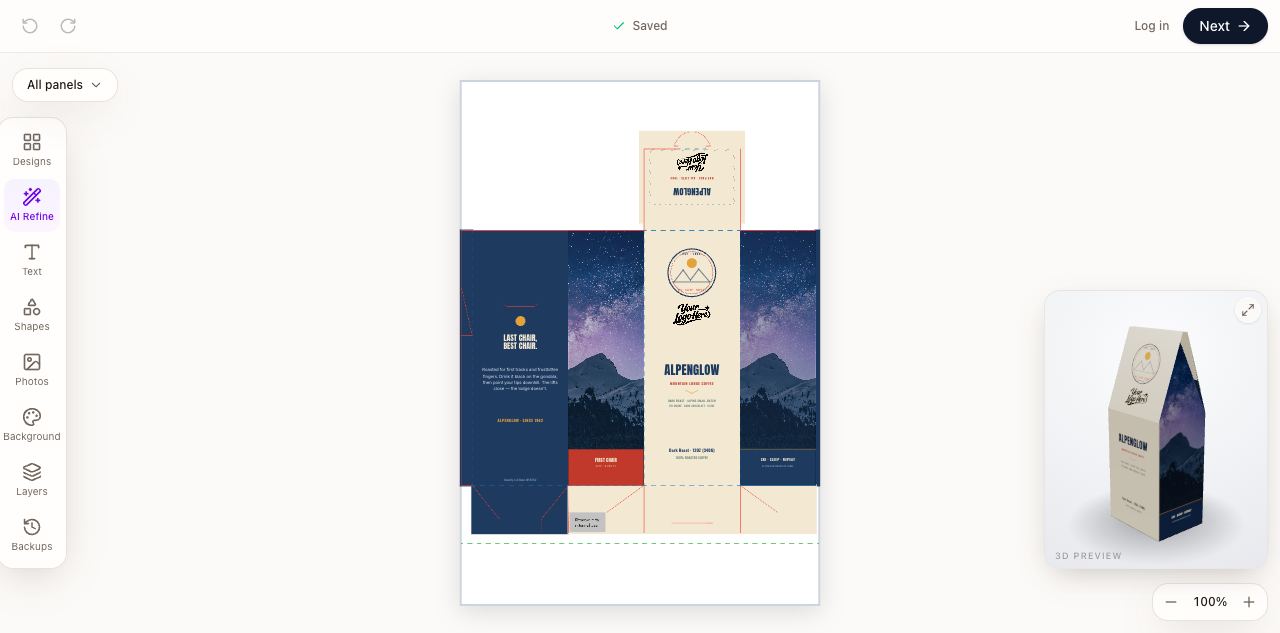
The Design Studio is where you bring your brand to life. When you create or edit a product, you'll automatically enter the designer.
The Designer Interface
- Canvas Area - The main workspace where you see and edit your design. Click and drag elements to move them.
- Tools Panel - Left side panel with tools for adding text, images, shapes, and other elements.
- Properties Panel - Right side panel where you adjust colors, fonts, sizes, and other settings for selected elements.
- Preview Panel - Bottom or side panel showing your design as a 3D product mockup in real-time.
Creating Your First Design
Option 1: Start from a Template
Templates are a great way to get started quickly:
Click on Templates in the designer
Browse available templates in the General tab, or view your previously saved designs in the My Designs tab
Click Use This Template to start editing
Templates are fully customizable! Change colors, fonts, images, and text to match your brand.
Option 2: Start from Scratch
Want complete creative control? Start blank:
Click New Design or select a blank canvas
Build your design element by element:
- Add your logo
- Include your brand name
- Add images or graphics
- Include tasting notes or descriptions
Adding Design Elements
Text
Add text to your design for your brand name, tagline, and product information:
Click the Text tool in the left panel
Use the right panel to adjust:
- Font family and style
- Font size
- Text color
- Alignment
Use 2-3 fonts maximum. Too many fonts can make your design look cluttered and unprofessional.
Images
Add your logo, photos, or graphics:
Click the Image tool
Choose how to add your image:
- Upload: Choose a file from your computer
- Stock Photos: Browse our library of royalty-free images
Use the right panel to adjust opacity or apply filters
Only use images you have permission to use. Uploaded images should be high resolution (at least 1000x1000 pixels).
Shapes and Icons
Add decorative elements:
Click the Shapes or Icons tool
Resize, rotate, and change colors as needed
Previewing Your Design
The 3D preview shows how your design will look on the actual product:
Look at the preview panel (usually on the right or bottom)
Check how it looks from different perspectives
The preview is an approximation. Final printed products may vary slightly in color and appearance.
Design Best Practices
Keep It Simple
-
✅ Use clean, readable fonts
-
✅ Limit your color palette to 2-3 colors
-
✅ Make your brand name the most prominent element
-
✅ Include essential information (coffee type, weight, your brand)
-
❌ Use too many fonts or colors
-
❌ Clutter the design with too many elements
-
❌ Use low-resolution images
-
❌ Put important text near edges where it might get cut off
Make It Professional
- Brand Consistency: Use the same fonts and colors across all your products
- High Quality Images: Use clear, professional photos
- Adequate Contrast: Make sure text is readable against the background
- White Space: Don't be afraid of empty space - it helps your design breathe
Required Information
Your design must include these FDA-mandated elements:
Mandatory Text:
- Product weight: "12oz (340g)"
- "100% Roasted Coffee"
- "Manufactured for: [Your Brand Name]"
- Your valid business address
Best Practices:
- Roast level indication
- Tasting notes or flavor profile
- Best by date (added during fulfillment)
- Your website or contact info
Designs that don't include required FDA information will be rejected and can't be printed.
Saving and Exporting
Saving Your Design
Click Save in the top toolbar
You can return later to continue editing
Downloading Mockups
Get marketing images of your design:
Click Export or Download Mockup
Choose your preferred format:
- JPG: Best for web and social media
- PNG: With transparent background
Click Download
Download mockups in multiple angles and sizes. These are perfect for social media, your website, and marketing materials!
Image Requirements (For Uploads)
If you're uploading your own design instead using our in-app designer:
| Requirement | Specification |
|---|---|
| Resolution | 3900 x 5700 pixels |
| DPI | 300 DPI |
| Format | JPG or JPEG |
| File Size | 10MB or less |
Dieline Templates
We also provide dieline templates for advanced design in external tools like Photoshop or Illustrator:
Common Design Tasks
Resize an Element
Click on the element to select it
Hold Shift to maintain aspect ratio
Move an Element
Click and hold on the element
Use arrow keys for precise adjustments
Change Colors
Click on the element
Click the color square and choose:
- A preset color
- A color from the palette
- Enter a hex code directly
Undo/Redo
Made a mistake? Use these shortcuts:
- Ctrl+Z (Windows) or Cmd+Z (Mac): Undo
- Ctrl+Y (Windows) or Cmd+Shift+Z (Mac): Redo
Troubleshooting
"My image looks blurry"
- Make sure you're uploading high-resolution images (at least 1000x1000 pixels)
- Check the original file quality
- Vector images (SVG, AI) work best for logos
"Colors don't match what I expected"
- Computer screens display colors differently than print
- The preview is an approximation
- Use the color picker to adjust until you're happy
"Text is hard to read"
- Increase font size
- Add contrast between text and background
- Use simpler fonts for small text
"The preview looks different from my design"
- The 3D preview is an approximation
- Some distortion is normal for curved surfaces
- Check the flat preview for accuracy
Getting Help
Email Support
Questions about the designer or your designs? We're here to help.
Professional Design Services
Want a professional design but don't want to do it yourself? Learn about our services.