
Roastify
Products

Create Products

Learn how to create custom coffee products from our catalog, design unique packaging, and prepare for selling

Creating your first product is an exciting step in building your coffee brand. This guide walks you through the entire process from selecting your coffee to publishing your product.

Overview

Creating a product in Roastify involves three main steps:

  1. Choose your coffee - Browse the catalog and select a coffee
  2. Design your packaging - Use the Design Studio to create your look
  3. Save your product - Name it and add it to your products

Step 1: Choose a Coffee from the Catalog

Navigate to Catalog in the main navigation

Browse available coffees by product type, roast level, or flavor profile

Find a coffee you want to use and click Start Designing

This takes you directly into the Design Studio with a blank template for that product type.

Not sure which coffee to choose? Check the Product Catalog guide for details on browsing and filtering options.

Step 2: Design Your Packaging

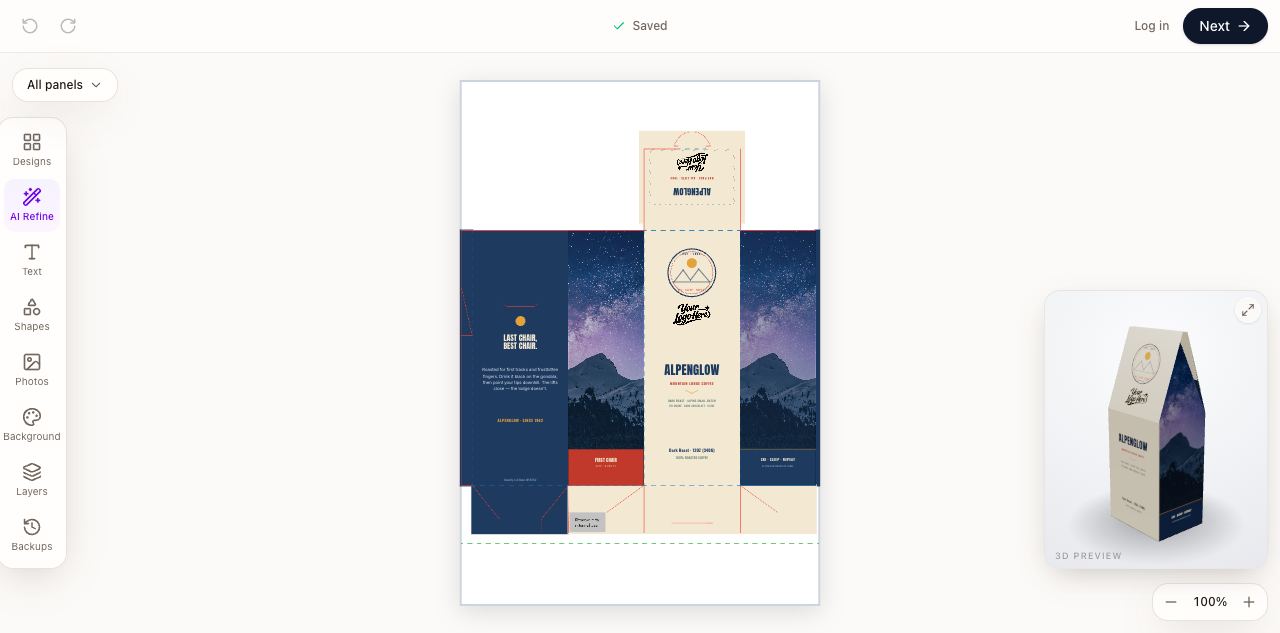
When you enter the Design Studio, you'll see a blank template for your chosen product type (e.g., 12oz box).

The template shows labeled areas for the Front, Back, Left, Right, and Top Flap of your packaging.

Template areas

Quick Start with Templates

The fastest way to get started is by using a pre-made template:

  1. Click the Templates tab in the left sidebar
  2. Browse available templates or check My Designs to reuse a previous design
  3. Click a template to load it onto your canvas

Templates tab

Customize Your Design

Use the Design Studio tools to customize your packaging:

  • Text - Add your brand name, coffee name, and descriptions
  • Images - Upload your logo and brand imagery
  • Background - Choose gradients or search Unsplash for stock photos
  • Elements - Add shapes and decorative elements

For detailed instructions on all design tools, see the Design Studio Guide.

Preview in 3D

Click Show 3D Preview to see how your design will look on the actual product:

3D Preview

  • Rotate the product to view from any angle
  • Click Mockup to capture images for marketing use
  • Click Fullscreen for a larger view

Step 3: Create Your Product

When you're happy with your design:

Click Create Product in the top right corner

Enter your Product Name (required)

Create product dialog

Add an optional Description
Click Create Product

Wait for the design to upload - you'll see a saving indicator in the bottom right

Design files are large and may take a few minutes to save. Don't close the browser until you see the success confirmation.

Your product is now added to the My Products page!

Product Variants

When you create a product, both Whole Bean and Ground variants are included by default. If you're using Shopify, you can modify which variants appear in your Shopify admin.

Product Limits by Plan

Your plan determines how many products you can publish:

PlanPublished Products Allowed
Free Trial20 products
Base50 products
Pro350 products
You can have unlimited draft products. The limit only applies to published products.

Common Questions

"Can I change the coffee after creating the product?"

No. Once you create a product, the coffee selection is locked. If you want a different coffee, create a new product.

"How do I edit my design after saving?"

  1. Go to Products in the navigation
  2. Find your product and click on it
  3. Click Edit Design to open the Design Studio
  4. Make your changes and save

"What if I accidentally close the browser?"

Don't worry! The Design Studio automatically creates backups. When you return, go to the Backups tab and click Load Version to restore your work.

Next Steps

On this page