

Check packaging before ordering
Inspect each panel and the assembled preview before you submit a design.
Check the package after your final edit and before ordering. The flat layout can look correct while flap text or artwork is misplaced on the assembled package.
Review every panel
- Confirm the coffee name, format, and product information match the selected product.
- Replace all example text and images. Check spelling, contact details, and any links you printed.
- Inspect the front, back, sides, top, and bottom where present. Look for blank areas, cropped text, and content too close to a fold or cut edge.
- Let the 3D preview update, expand it, and rotate the package. Check the orientation of flap text and artwork that crosses panels.
- Return to the flat layout to fix issues, then recheck the preview and save.
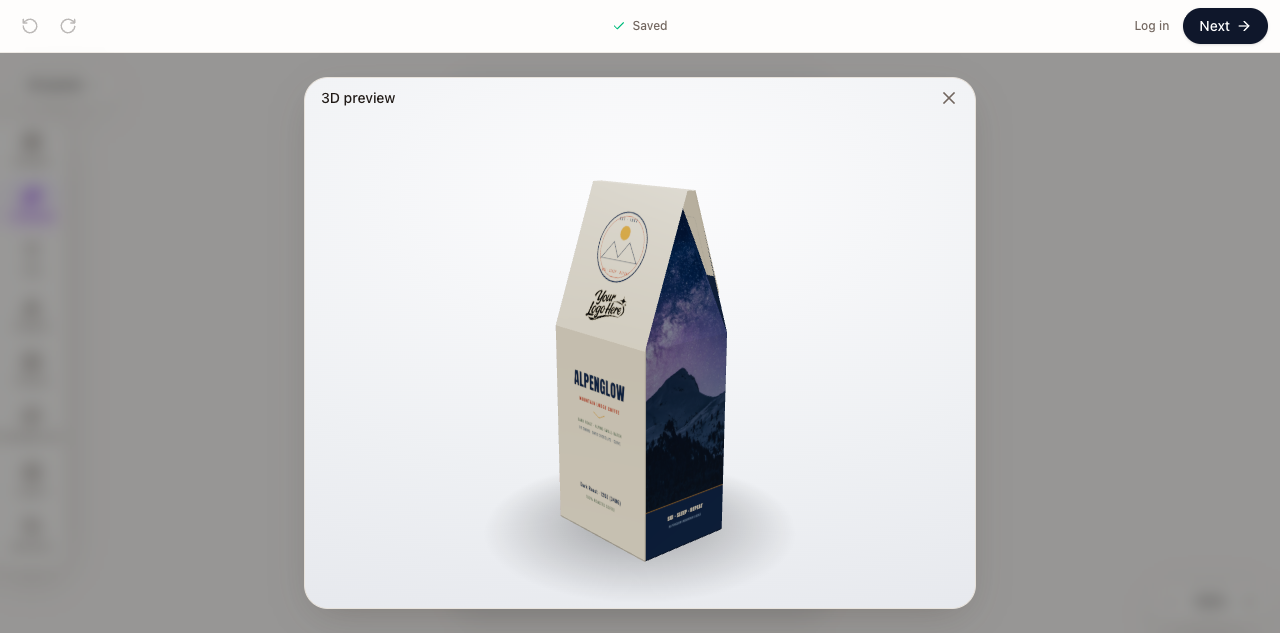
Transcript: Check the flat layout for blank panels, cut-off text, and artwork near edges. Open the expanded preview, then rotate it in the Designer to inspect the other sides. Make corrections in the layout and recheck before ordering. This is a visual walkthrough made from still images.
Product information and print expectations
Keep the correct product information from the current template visible and readable. If you change the contents, format, ingredients, or claims on a label, confirm the required copy for that specific product before printing.
The 3D preview is a design reference. It does not guarantee printed color, material appearance, manufacturing tolerances, or label compliance.
For coffee descriptions and tasting notes, use the coffee reference. A tasting note describes flavor; it is not an ingredient or allergen statement.