

Create Artwork
Learn how to create and edit artwork using previously saved designs.
The Create New Artwork endpoint allows API users to create new artwork using previously saved Roastify Merchant app designs. This enables you to take advantage of Roastify's GUI design tool to create templates, and then programmatically edit the artwork for custom use cases.
If you haven't created your first product or design, check out the Create a Product and How to Use the Designer guides to get started.
Create Artwork
Start an artwork job by providing a saved product ID and custom field values.
Customize Designs
Update text and image fields in your saved product templates for personalized artwork.
Get Artwork URL
Poll the job status and receive an artwork URL when generation completes.
Common Use Cases
- Holidays
- Corporate Gifts
- Personalized Gifts (Birthday, Anniversary, Wedding, Graduation, Retirement)
- Teams & Events (Team building events, team gifts, team outings)
- Thank You Gifts (Example: Realtors using personalized coffee as a thank you for their business)
- Gag & Prank Gifts (Example: April Fools Day, Birthday pranks, pet pictures, etc.)
How to Create Artwork
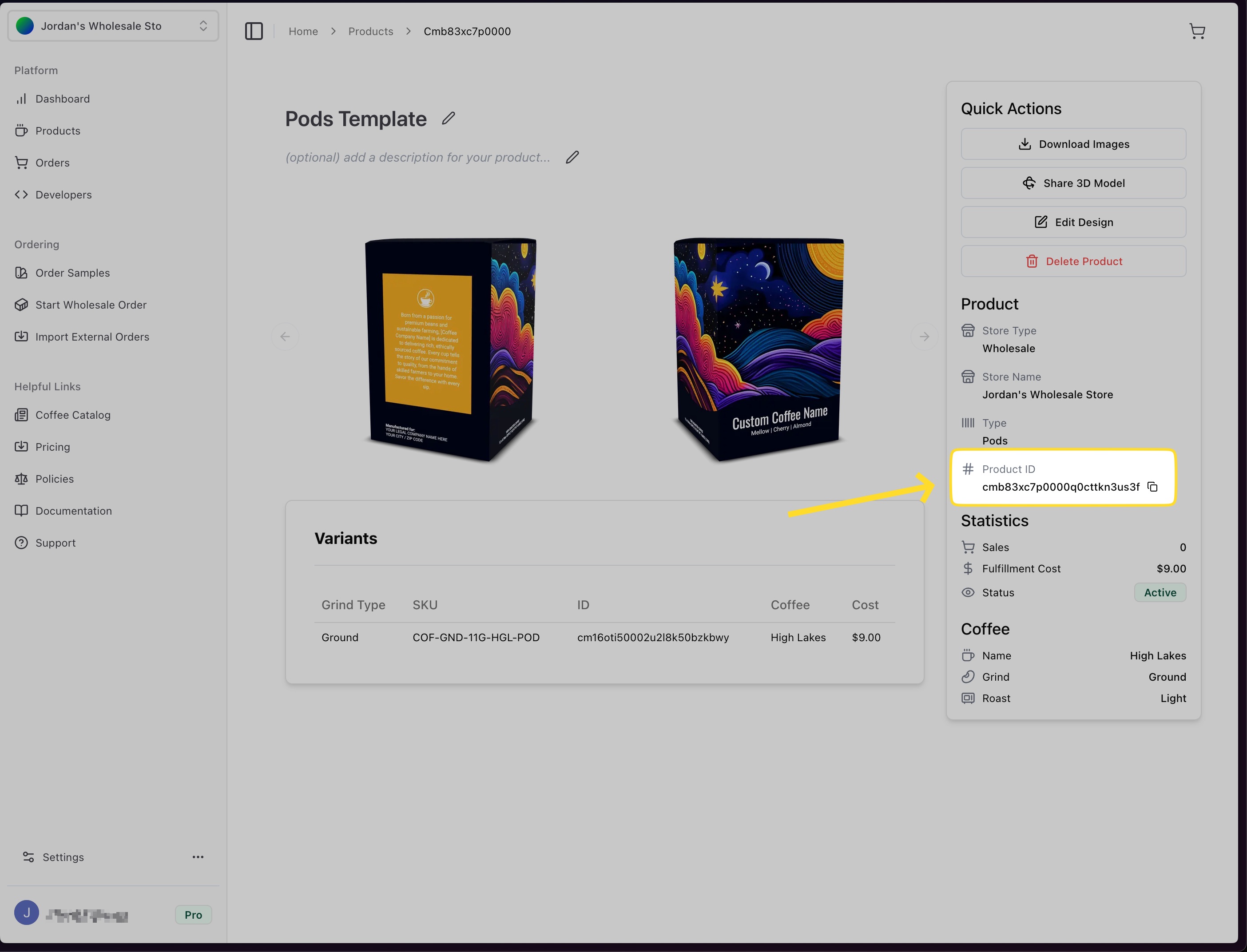
Find the Product ID for your template on the product page in the Roastify Merchant app. Alternatively, you can use the Get Products and Get Product By ID endpoints to get the product ID.
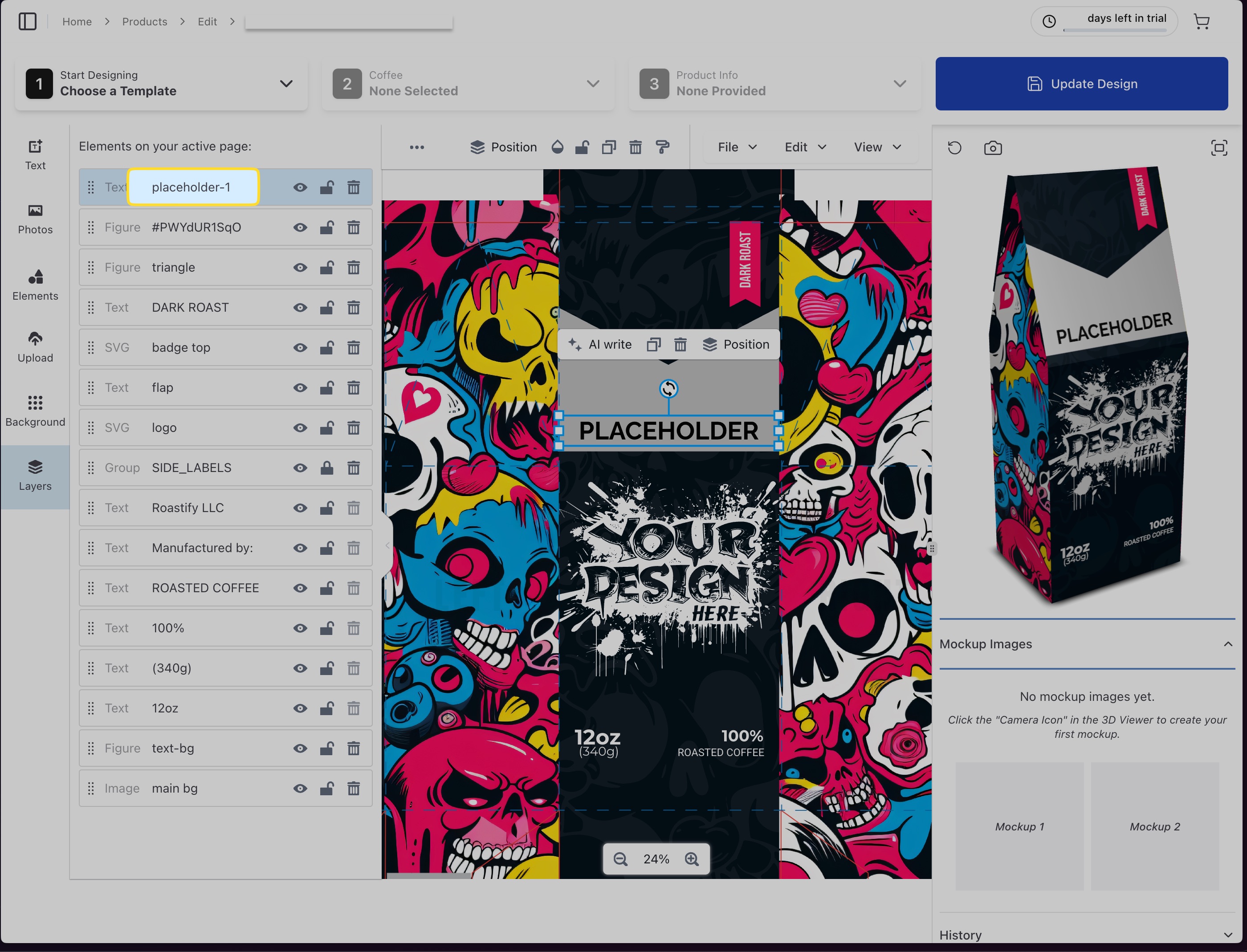
Find and list the fields you want to update. Each field needs a fieldId, type (text or image), and a value.
This earlier Designer screenshot shows a field named placeholder-1 with type text. Use the actual identifiers in your saved design; editor controls can differ by design version.
Make a POST request to /v1/artwork/new with your productId and fields array.
{
  "productId": "cmb04pd9m4005k6049b3elq6d",
  "fields": [
    {
      "fieldId": "placeholder-1",
      "type": "text",
      "value": "Happy Birthday!"
    },
    {
      "fieldId": "main-cover-image",
      "type": "image",
      "value": "https://example.com/image.jpg"
    }
  ]
}
A successful request returns 202 Accepted with a job ID rather than the finished image:
{
  "jobId": "run_01234567890abcdef",
  "status": "QUEUED"
}
Request GET /v1/artwork/status/JOB_ID until the status is COMPLETED or FAILED. Replace JOB_ID with the value returned by the create request. A completed response includes the generated image:
{
  "jobId": "run_01234567890abcdef",
  "status": "COMPLETED",
  "artworkUrl": "https://example.com/generated-artwork.jpeg"
}
A failed response includes an error value. Artwork generation is asynchronous, so use a short delay and reasonable retry limit between status requests.
Tips & Troubleshooting
Common issues:
- Invalid
productIdor field IDs. These are case sensitive. - Image URLs must be accessible and valid
- Images should be reasonably sized. Excessively large images can cause the image generation to fail.
- Only
textandimagefield types are supported - Treat artwork generation as asynchronous and wait for a terminal status before creating an order
- A
422response saying the product uses a legacy design means the design was made in our older designer and can't be converted for artwork generation. Create a new design for the product in the Roastify Merchant app, then retry with the new product ID.
If you encounter errors, review the error message and ensure your request matches the required format.